Install MaxOffice
Get it on Google Play. On iPhone, email the office and we will send the install link while the App Store listing is going up.
MaxOffice is for owners and trustees of body corporates managed by Maverick & Max. Follow a ticket, approve a quote, or log a query without waiting on email.
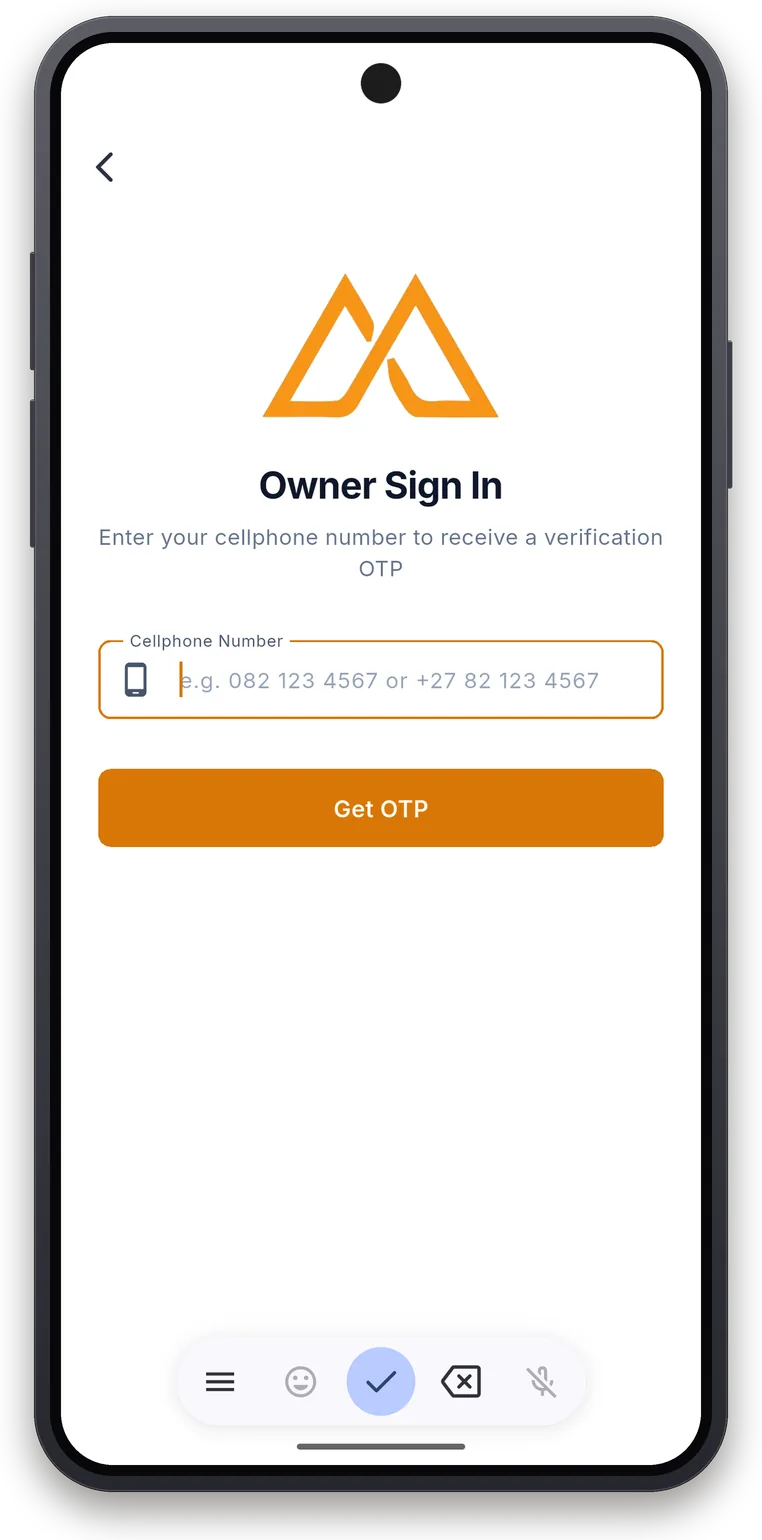
Sign in with the cellphone number provided to us during the onboarding process.
One app. Owners see their property. Trustees also see the tickets for every scheme they look after.
You do not need a trustee role, and you do not need a password. The cellphone number from onboarding is the sign-in.
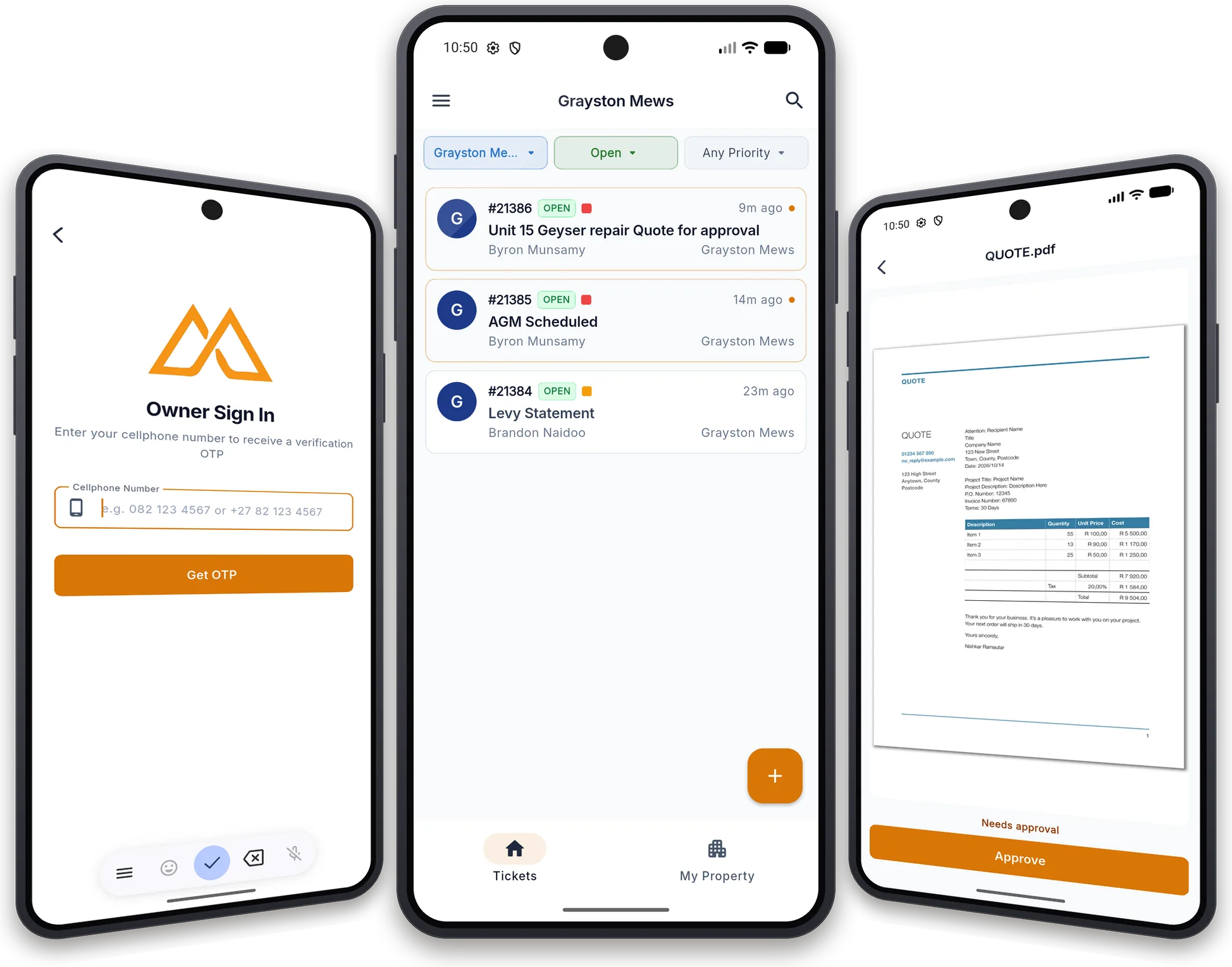
Choose Owner Login, enter your cellphone number, and type the SMS code. Web sign-in stays limited to trustees and staff. The app is where an owner works.
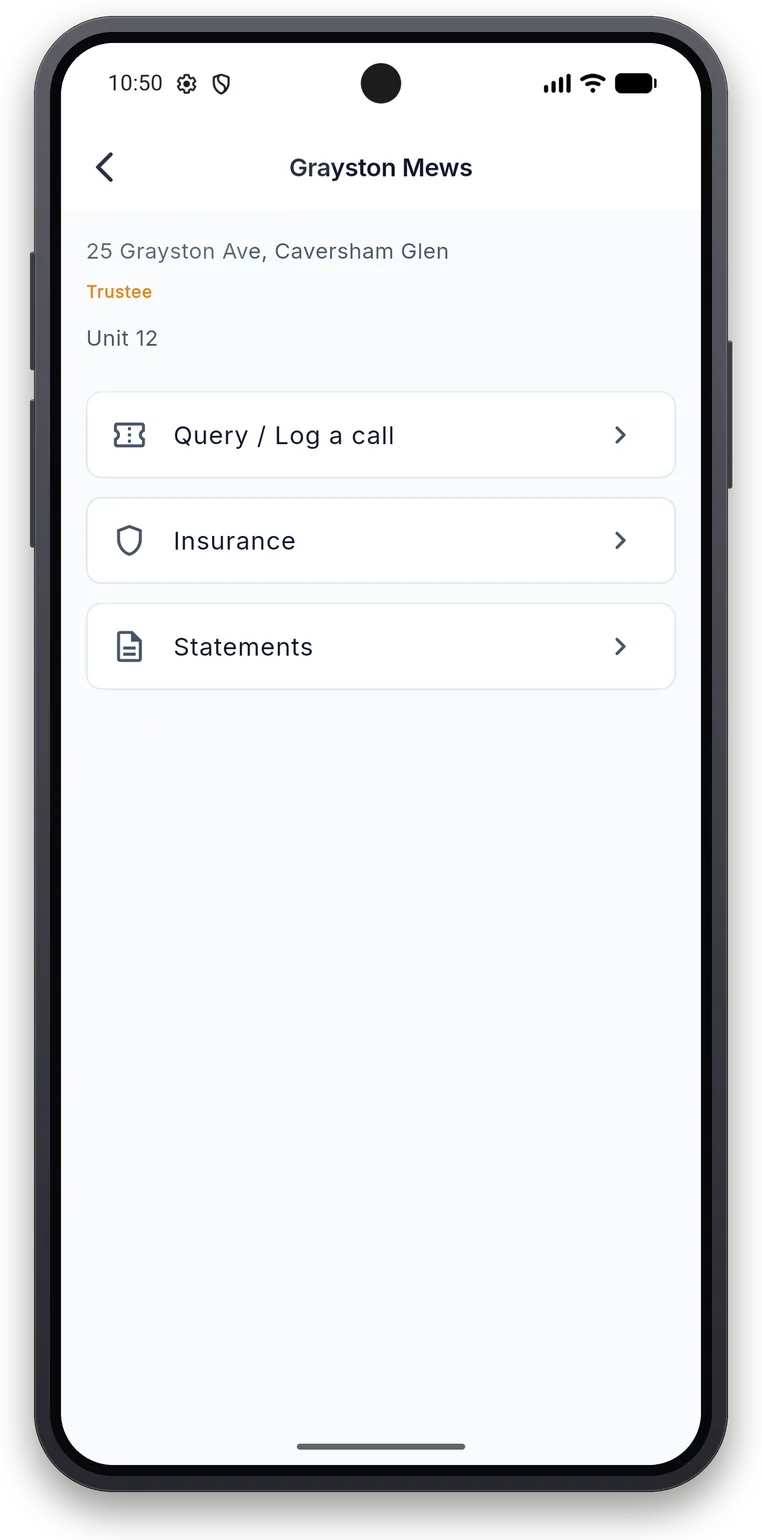
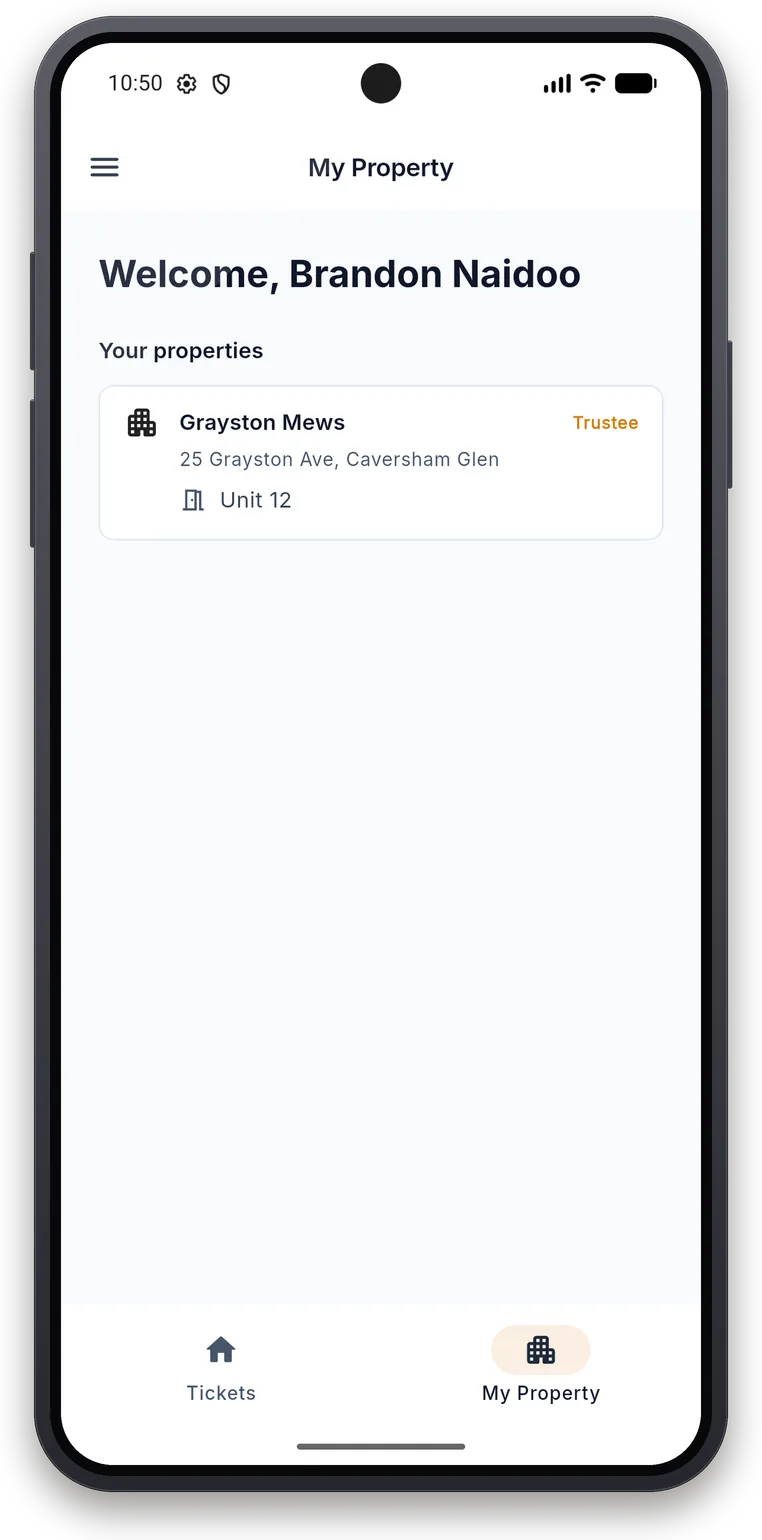
My Property lists each scheme and unit on your record. Open the scheme and send a query to the office. Insurance and statements are on that screen too, and they show documents once the office has published them.
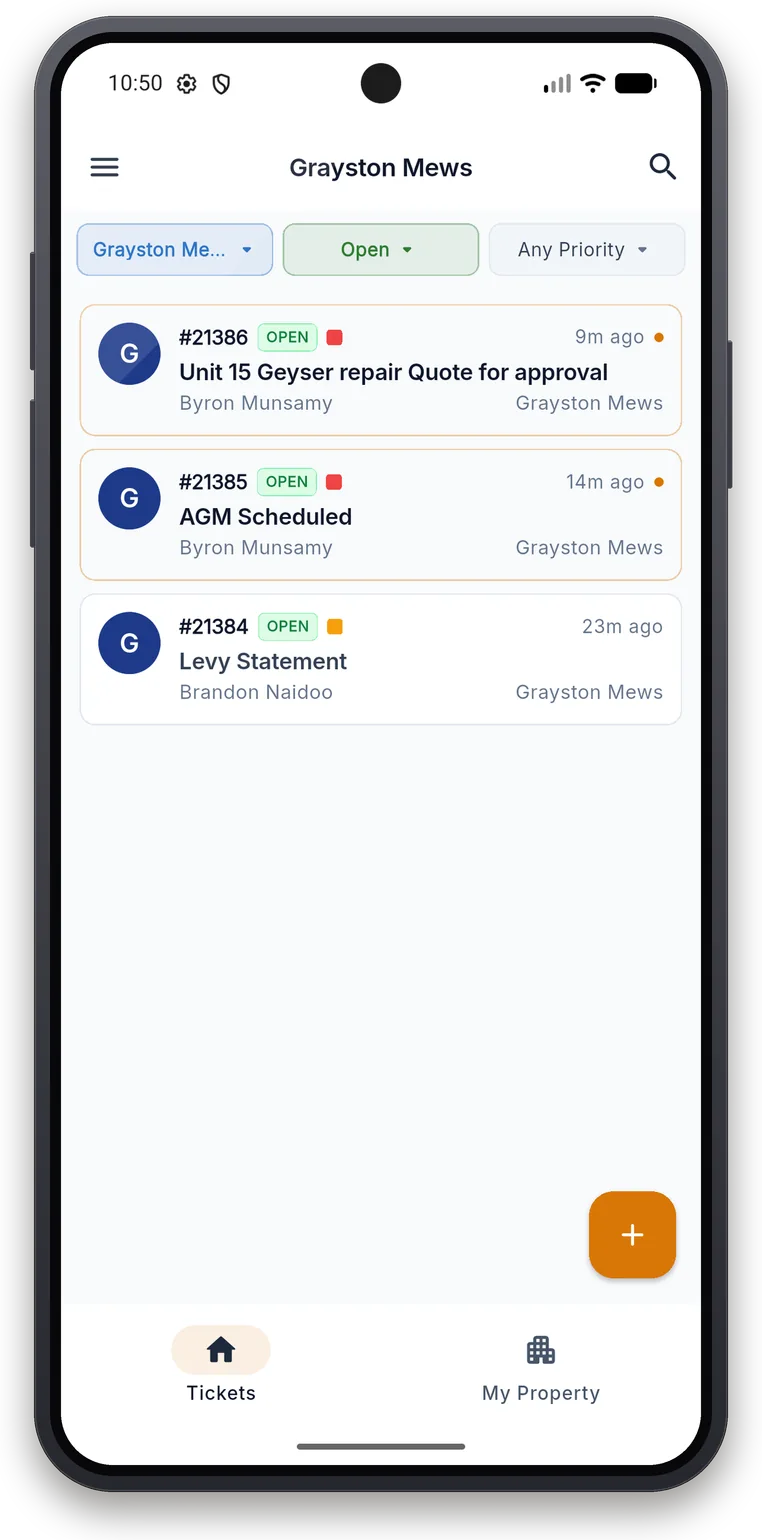
Trustees use the same owner sign-in. The ticket list follows the schemes where the office has you down as a trustee.
Filter by scheme, status, and priority. Open a row to read who asked, what was said, and which files are attached.
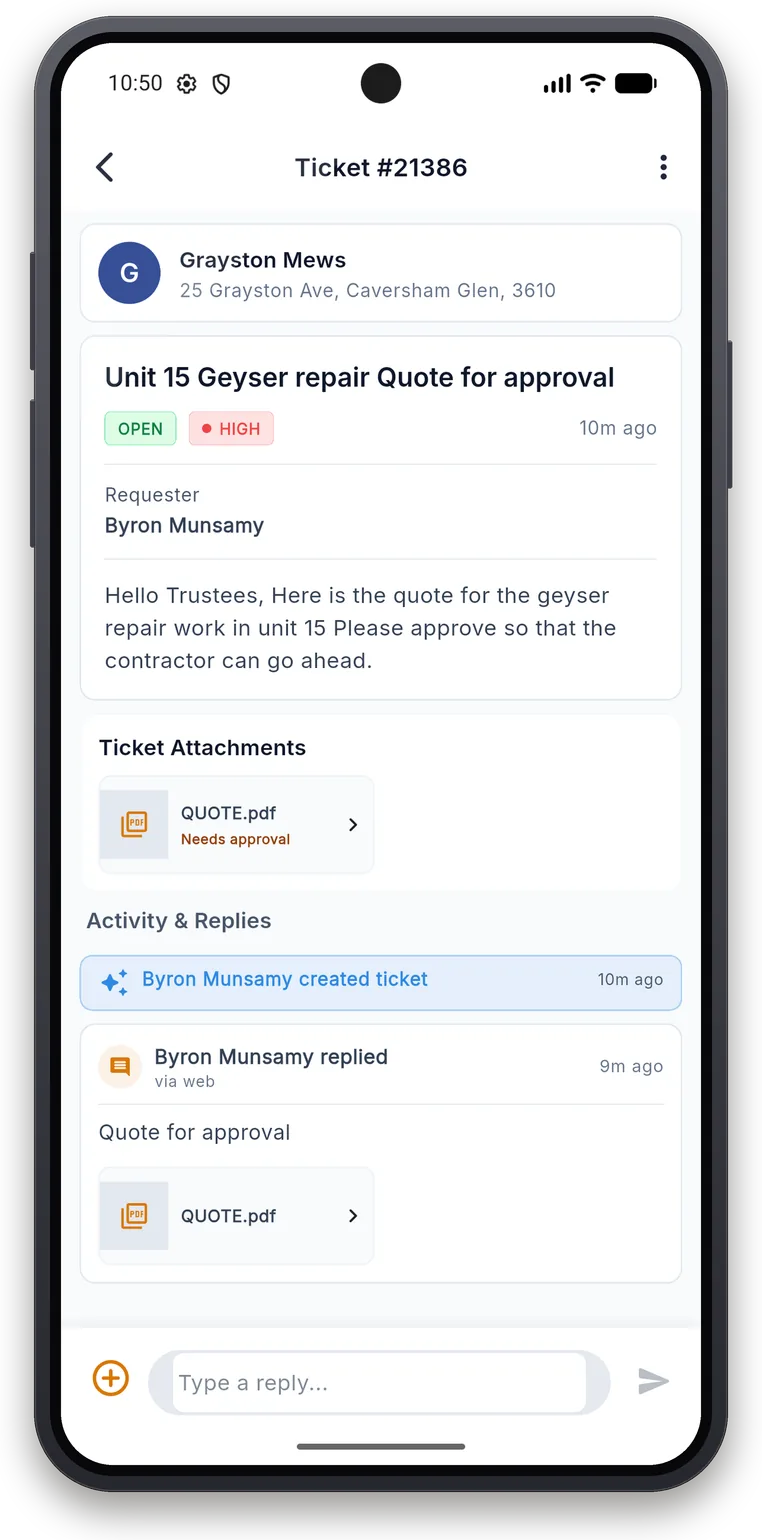
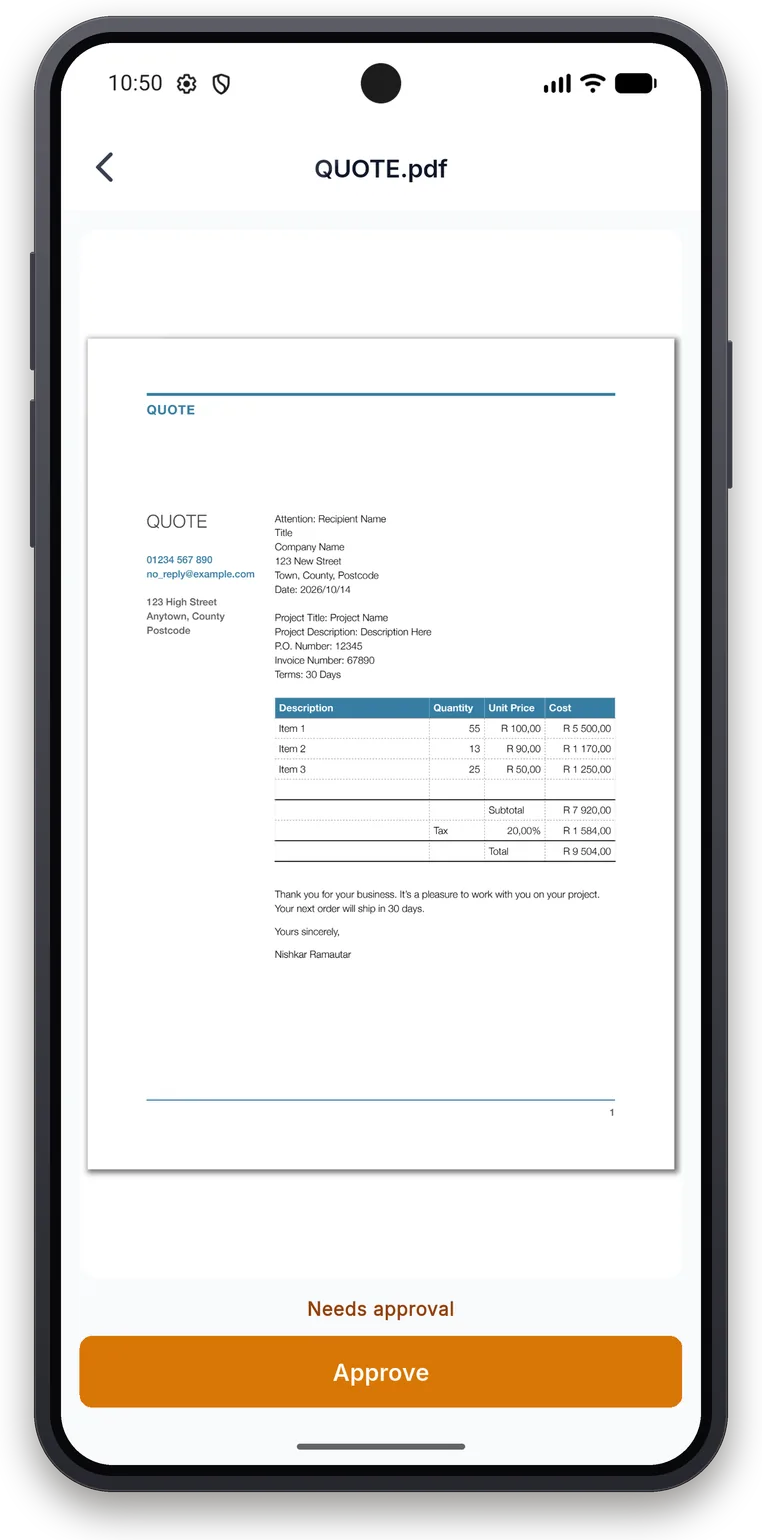
Open the PDF and approve it under the preview. The decision is recorded on the ticket, so the office can send the contractor ahead. Reply first if you still have a question.
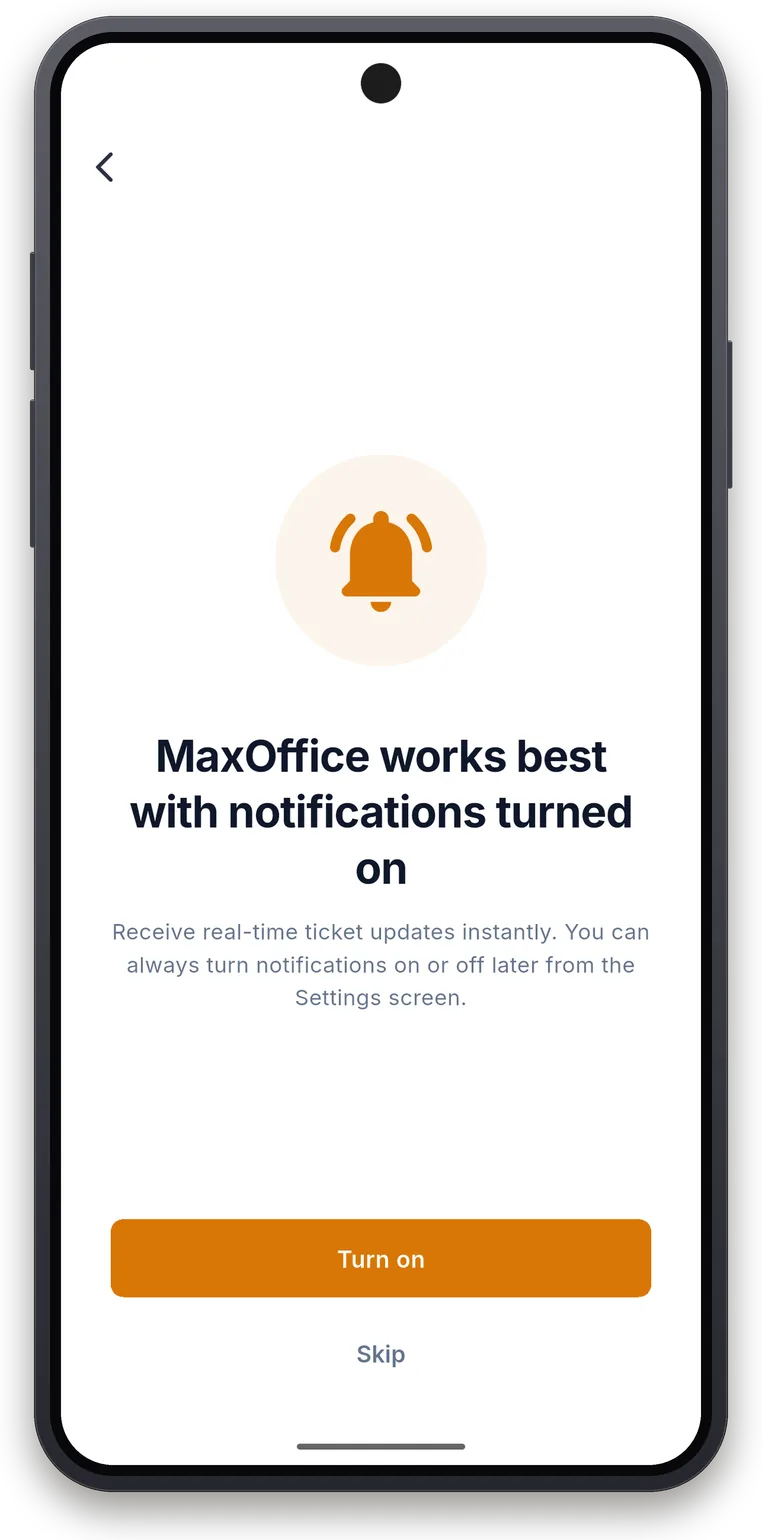
Turn notifications on after sign-in. Ticket activity can alert you, and you can switch that off later in Settings.
Get it on Google Play. On iPhone, email the office and we will send the install link while the App Store listing is going up.
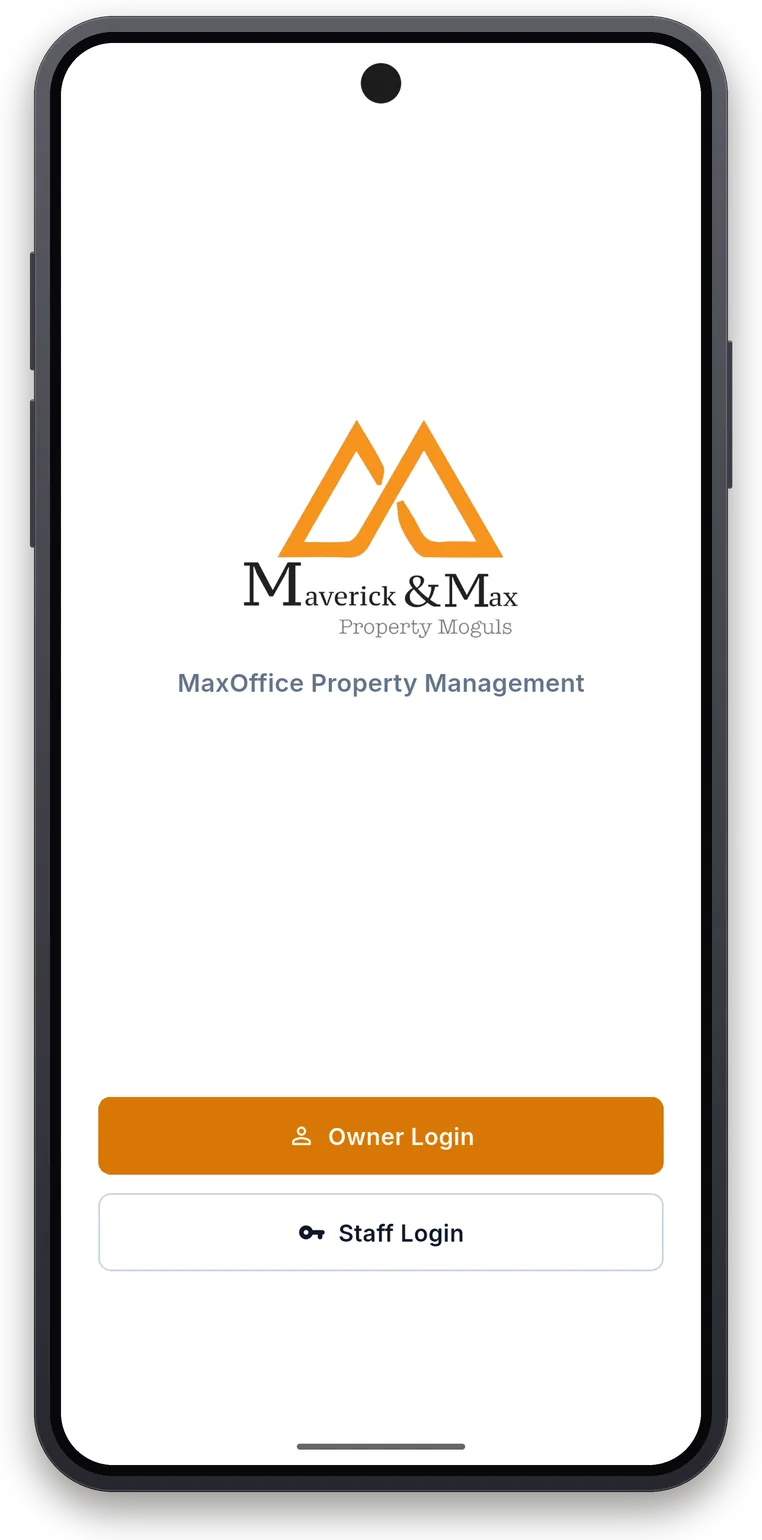
Owners and trustees share that button. Staff choose Staff Login and sign in with their office username.
Use the cellphone number already on your owner record. The code is 4 digits. There is nothing else to set up.
MaxOffice opens on the Maverick & Max mark. Owner Login is the main button. Staff Login is the second one, for the office team.
Questions about a scheme we manage: office@maverickandmax.co.za or 072 311 9729.